
Most VAT headaches in Tanzania don't start at TRA. They start in the accounting system: a tax set up with the wrong account, a withholding agent's invoice that never balances, or a VAT return rebuilt by hand in Excel every month because the numbers in the system can't be trusted.
Odoo 20 can handle Tanzanian taxes properly, from 18% VAT to withholding VAT and withholding tax on services, as long as each tax is configured with care. This guide walks through the settings that matter, with examples from Mainland Tanzania.
Rates in this article reflect the Finance Act 2026. Tax rules change every July, so confirm them with TRA or your tax advisor before you configure your database.
The Tanzanian taxes you will set up
| Tax | Rate | Where it applies in Odoo |
|---|---|---|
| VAT, standard rate (Mainland) | 18% | Sales and purchases |
| VAT, reduced rate for specified B2C sales paid by bank or approved electronic payment | 16% | Sales |
| VAT, Zanzibar standard rate | 15% (18% for banking, postal, telecom, insurance and digital services) | Sales and purchases, Zanzibar branches |
| Zero-rated supplies (exports and certain services) | 0% | Sales |
| Exempt supplies | Exempt | Sales and purchases |
| Withholding VAT, kept by a withholding agent | 3% of value for goods, 6% for services | Sales to withholding agents |
| Withholding tax on service fees (resident) | 5% | Vendor bills |
| Withholding tax on commercial rent and hired motor vehicles | 10% | Vendor bills |
Filing deadlines to keep in mind: withholding tax returns by the 7th, VAT returns by the 20th and excise duty returns by the 25th of the following month.
Where taxes live in Odoo 20
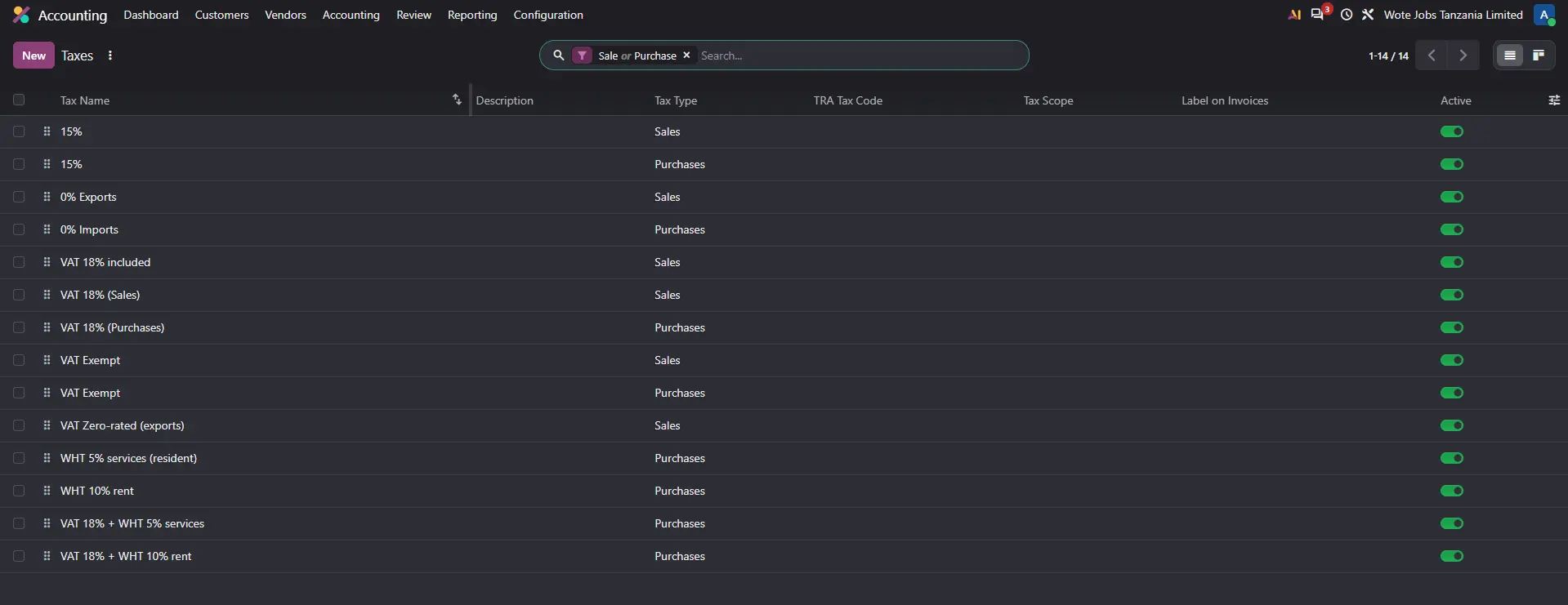
Go to Accounting > Configuration > Taxes. Each tax has two tabs: Definition for how it is calculated and where it posts, and Advanced Options for how it appears on invoices and in the totals.
If your database already has a Tanzanian chart of accounts with taxes loaded, review and adjust those taxes rather than creating duplicates.
The core fields, in plain language
- Tax Name: what users pick on invoice lines. Be specific, for example "VAT 18% (Sales)" and "VAT 18% (Purchases)".
- Tax Type: Sales, Purchase, or None. None is for taxes that only exist inside a group.
- Tax Scope: Goods or Services. This matters in Tanzania because withholding VAT and withholding tax treat goods and services differently.
- Tax Computation: Percentage, Percentage Tax Included, Fixed, or Group of Taxes.
- Amount: the rate or fixed value.
Choosing the right computation
Percentage is your everyday VAT 18%. A TZS 1,000,000 service gets TZS 180,000 VAT on top.
Percentage Tax Included suits shops, restaurants and POS where shelf prices already include VAT. A TZS 11,800 price splits into TZS 10,000 net and TZS 1,800 VAT. You can also leave the computation as Percentage and set Include in Price to Tax Included on the Advanced Options tab.
Fixed charges a set amount per unit. It fits specific excise duty charged per litre or per unit.
Group of Taxes combines several taxes into one selection. This is the key to withholding VAT, covered below.
Sequence and tax-on-tax
When a line carries more than one tax, Sequence decides the order. Two options control whether one tax changes another's base:
- Affect Base of Subsequent Taxes: later taxes are calculated on the price plus this tax. Tick it on an excise duty tax where the excise forms part of the value VAT is charged on.
- Base Affected by Previous Taxes: on by default. It lets this tax's base be increased by earlier taxes that affect the base.
Repartition lines: where the money goes
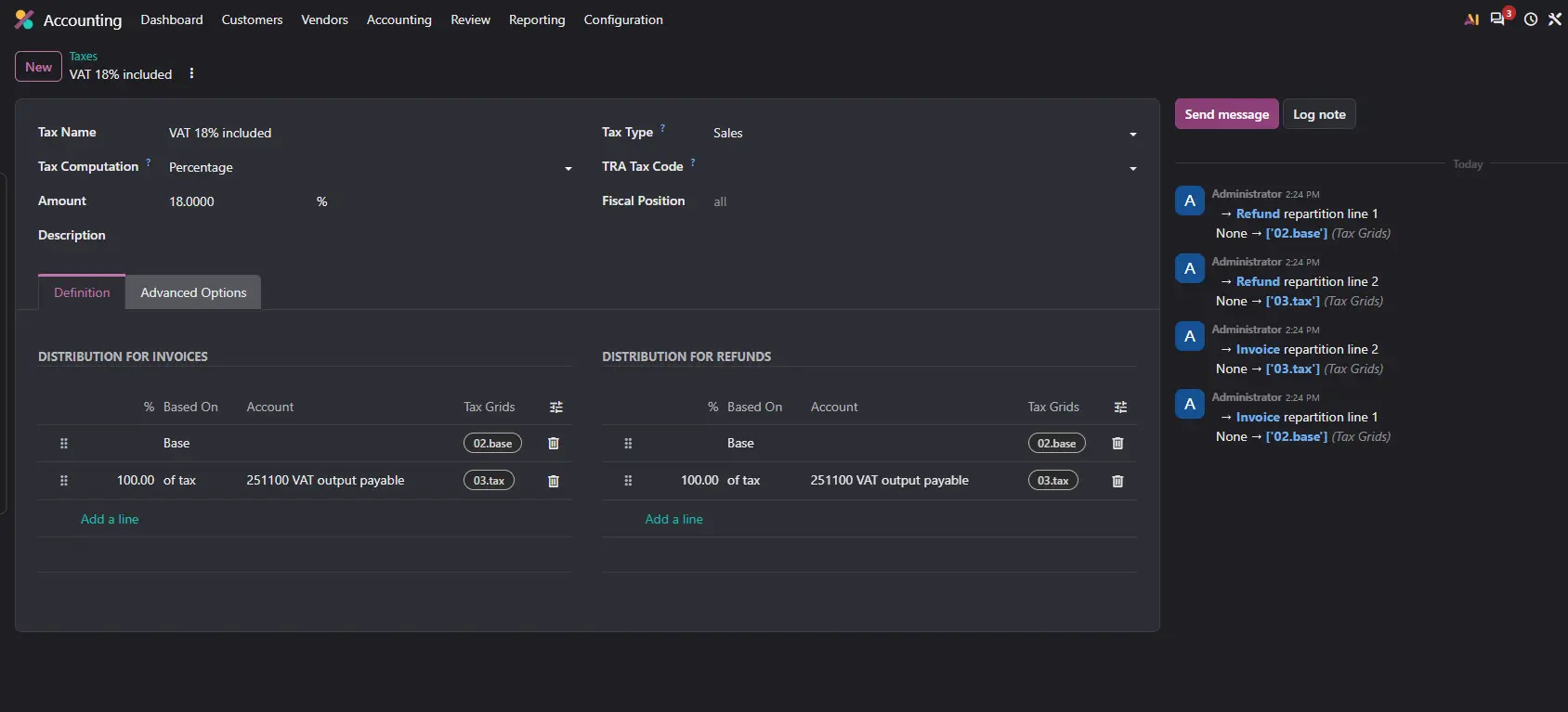
The Definition tab has two distribution tables: Distribution for Invoices and Distribution for Refunds. Each has one Base line and one or more Tax lines. Each tax line has a percentage of the tax, an account and tax grids.
For VAT 18% on sales, the tax line sends 100% of the VAT to your Output VAT payable account. For VAT 18% on purchases, it goes to Input VAT recoverable. Refunds mirror the same lines, so credit notes reduce the right figures.
Input VAT you can't fully claim
The VAT Act restricts input tax on some purchases. Instead of fixing these by hand, split the tax line. For example, put 100% to an expense account when the VAT is not claimable, or 50% to Input VAT and 50% to an expense account when only part is recoverable. Odoo 20's non-deductible tax option handles this split for you. Agree the treatment with your accountant first.
Tax grids: making the VAT return add up
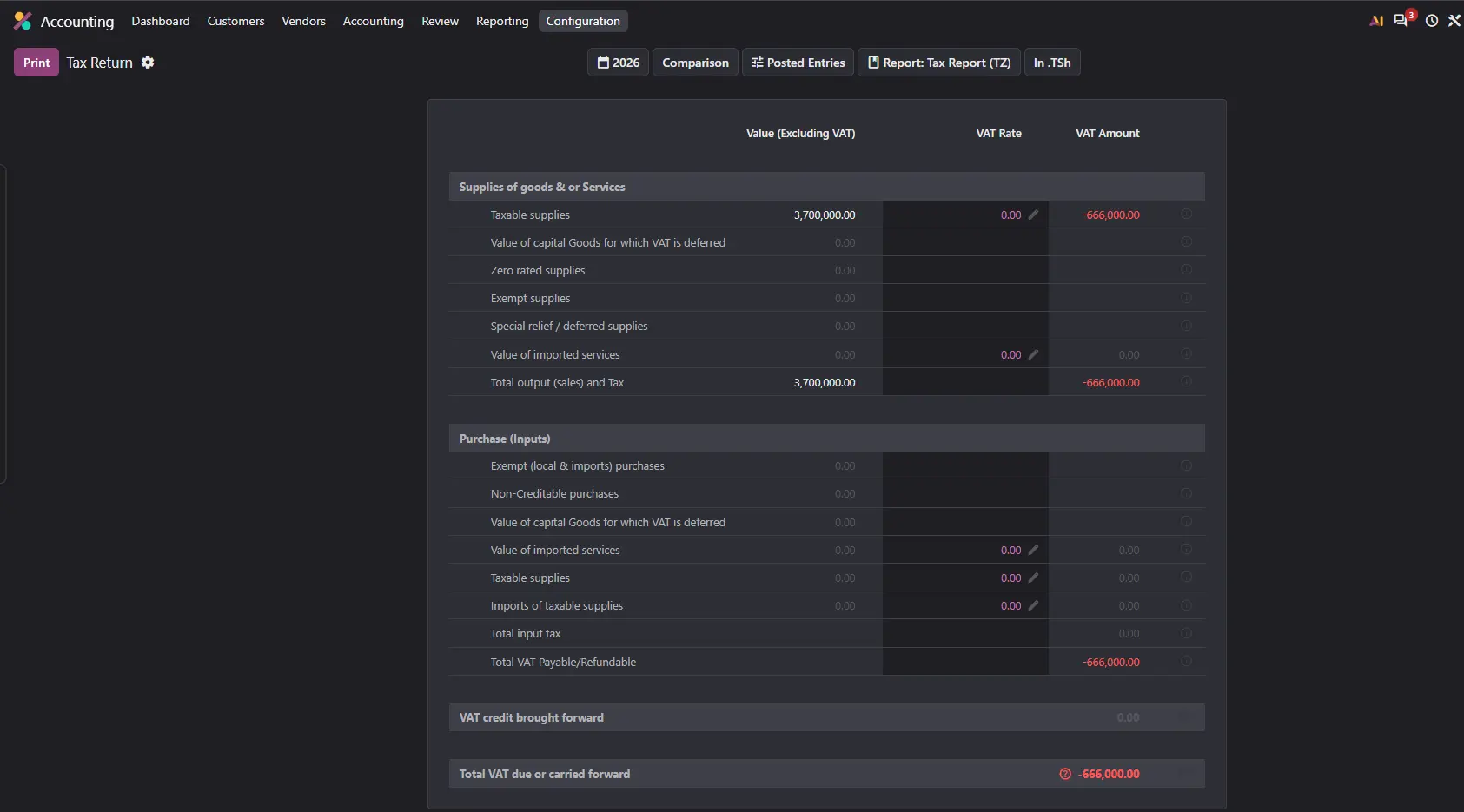
Tax grids tag every amount Odoo posts. The grid on the Base line tags the invoice line, recording the taxable value. The grid on the Tax line tags the VAT journal item, recording the tax amount. The tax report then adds up each grid.
Create grids named after the lines of the VAT return you file with TRA: standard-rated supplies, zero-rated supplies, exempt supplies, output VAT, and purchases with input VAT. Map every tax to them once. After that, the monthly report gives you the figures for your return, with each number traceable back to an invoice.
Withholding VAT: selling to a withholding agent
Since the Finance Act 2025, certain buyers act as VAT withholding agents: the Ministry of Finance, government entities that retain their revenue, and registered persons appointed by the Commissioner General. On a standard-rated supply, the agent withholds 3% of the value for goods or 6% for services, pays that to TRA, and pays you the rest of the VAT (15% for goods, 12% for services). For a mixed supply, the value is split 3:2 between goods and services.
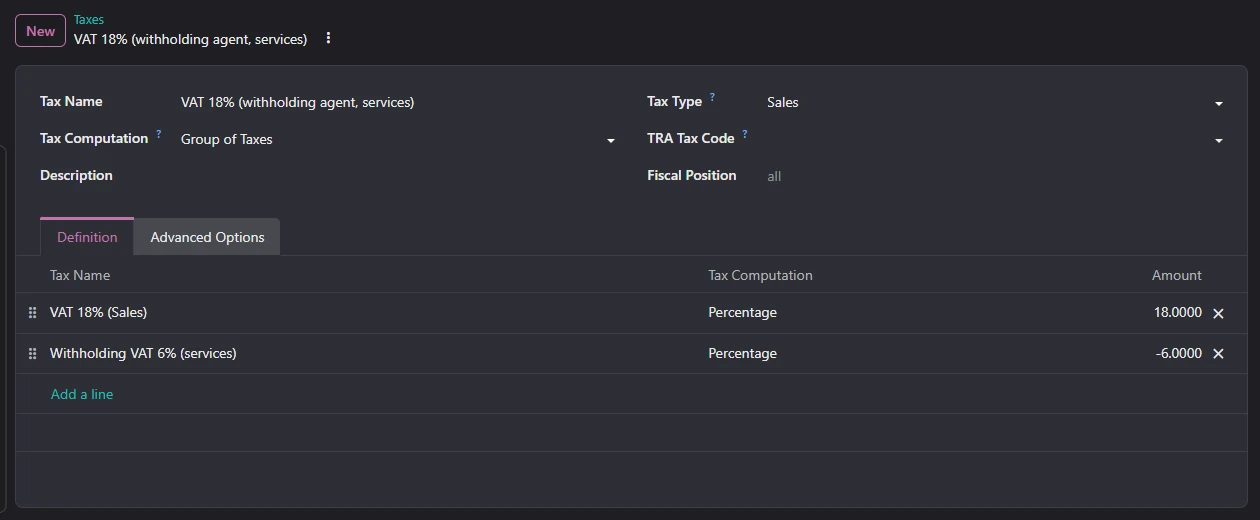
Set this up as a Group of Taxes, for example "VAT 18% (withholding agent, services)", containing:
- VAT 18%, your normal output VAT, posting to Output VAT payable.
- Withholding VAT 6% (services), at -6%, posting to a Withholding VAT receivable asset account.
On a TZS 1,000,000 service invoice, the customer sees VAT TZS 180,000, less TZS 60,000 withheld, so TZS 1,120,000 is due. Your full output VAT is still reported, and the withheld TZS 60,000 sits as a credit until it is offset at your VAT closing. Create a matching group with -3% for goods.
Withholding tax on services and rent (vendor bills)
When you pay a resident service provider, you usually withhold 5% income tax and remit it to TRA. For commercial rent and hired motor vehicles, the rate is 10%. In Odoo, create a Purchase tax:
- Name: "WHT 5% Services", computation Percentage, amount -5%, scope Services
- Tax line: 100% to a Withholding tax payable liability account
- Tax grid: a WHT grid, so you can run the monthly withholding statement
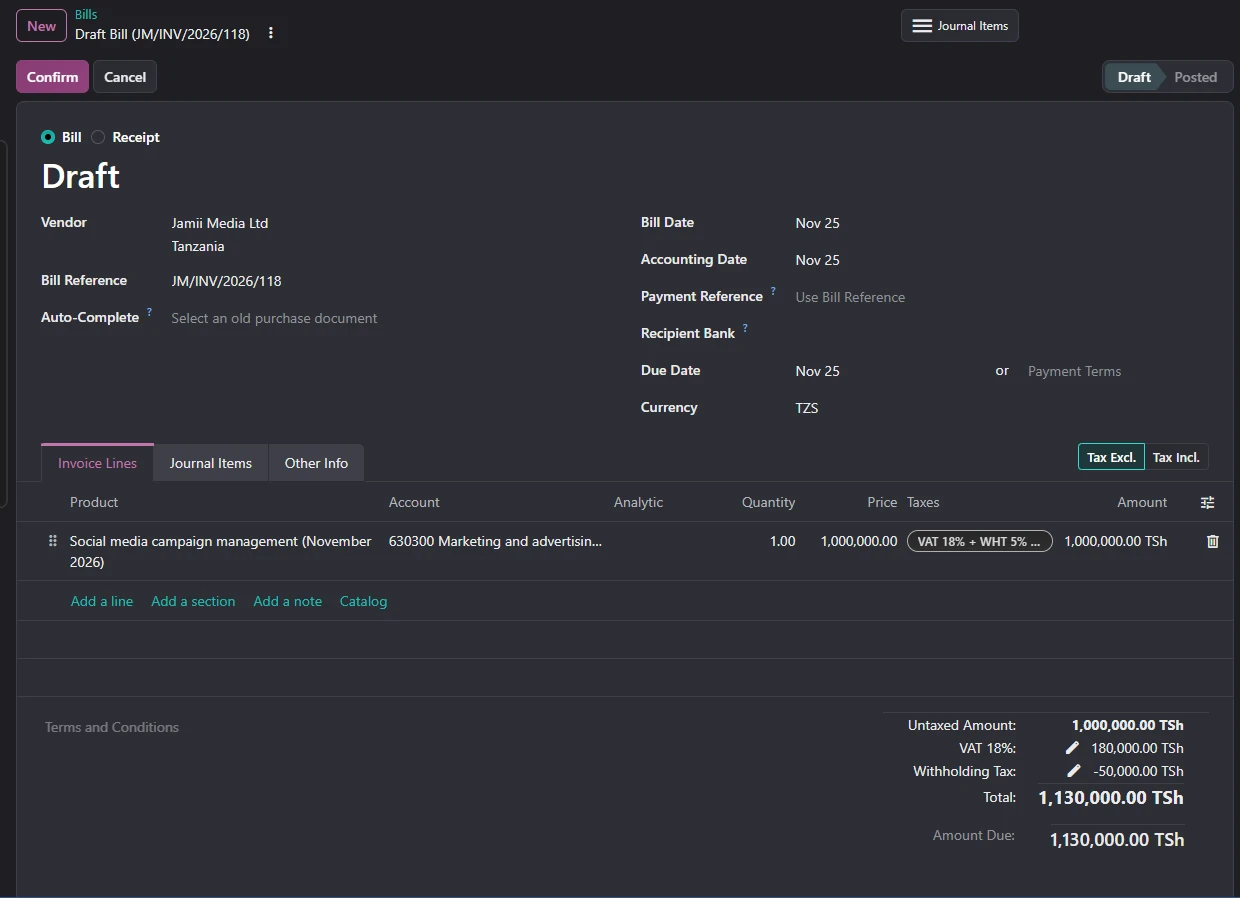
Add it to the vendor bill next to VAT. The bill shows the amount you actually pay the supplier, and the withheld amount waits in the liability account for your return due on the 7th.
Advanced Options worth setting
- Label on Invoices: the short name printed on invoices and the customer portal, such as "VAT 18%".
- Tax Group: rolls several taxes into one line in the invoice totals. Put VAT 18% sales and purchase in a "VAT 18%" group.
- Preceding Subtotal: the label of the subtotal shown before the group. If left blank, the group appears after the untaxed amount.
- Invoice Legal Notes: wording for zero-rated exports and exempt supplies, such as the basis for zero rating, printed automatically on the invoice.
- Country: set it to Tanzania so the tax appears in the right tax report.
Closing the month
Repartition lines that post to balance-sheet tax accounts (Output VAT, Input VAT, Withholding VAT receivable) take part in the tax closing entry. Lines posting to an expense account, or to no account, do not. Run the closing each month to move the net VAT into the amount payable to TRA, then file and pay by the 20th.
If you also need fiscal receipts, our TRA VFD module issues them directly from Odoo invoices and POS.
Setup checklist
- Separate sales and purchase taxes for VAT 18%, 0% and Exempt
- A 16% tax if you make qualifying B2C sales paid electronically
- Zanzibar taxes kept separate if you have a Zanzibar branch
- Withholding VAT groups for goods (-3%) and services (-6%)
- WHT purchase taxes at -5% (services) and -10% (rent, vehicle hire)
- Tax grids named after your TRA VAT return lines
- Legal notes on zero-rated and exempt taxes
- A test invoice, credit note and vendor bill checked against the tax report
Get your taxes right the first time
Chesify Labs configures Odoo accounting for Tanzanian businesses: VAT and withholding set up correctly, TRA-ready reports, and fiscal receipts through TRA VFD. Chat with us on WhatsApp or book a free demo.